
DriveSavers Featured in The New Yorker

The New Yorker published a feature on April 20, 2026, titled “When Your Digital Life Vanishes,” written by staff writer Julian Lucas. Look for it in the April 27 print edition under the headline “Resurrection Hardware.” Below is a short recap of the article and four tips for minimizing your data loss.
Julian Lucas, staff writer for The New Yorker, visited our Novato lab in January and spoke with engineers and leaders across the company, including Director of Engineering and CISO, Mike Cobb, Director of Business Development, Sarah Farrell, and Head of Cyber Recovery, Andy Maus. The article covers what happens behind the scenes in professional data recovery—and why, when data loss strikes, so many people trust DriveSavers.
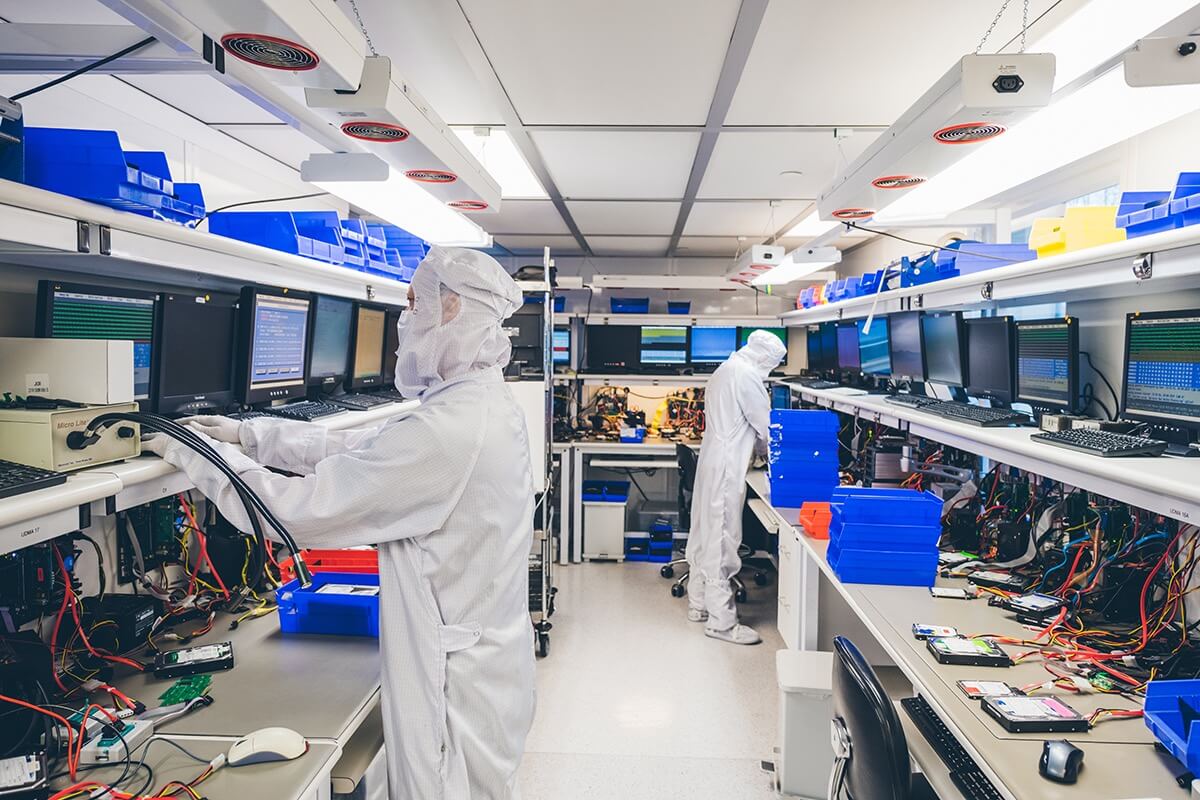
He toured the $2M cleanroom, where hard drives are opened under HEPA filtration, spent time in the Flash Physical Department, where engineers perform microsoldering and chip-level work on smartphones and SSDs, and the Logical Department, where files are reconstructed from damaged media. The article also covers the growth in ransomware recoveries at DriveSavers, from fewer than 50 cases in 2023 to nearly 300 last year.
The piece follows customer stories, including jugglers whose PowerBook went underwater in a 1993 cruise-ship sinking on the Amazon, a filmmaker whose Catskills footage was recovered after his external drive fell to the floor, and a family whose drives experienced extreme heat from the California wildfires. Lucas also references the range of notable clients who chose DriveSavers to recover their irreplaceable data, from government agencies to public figures.
Asked about the future of the industry, DriveSavers CEO Alex Hagan told The New Yorker: “Technology will continue to improve, but as long as humans are involved, there’s room for error. People continue to break stuff.”
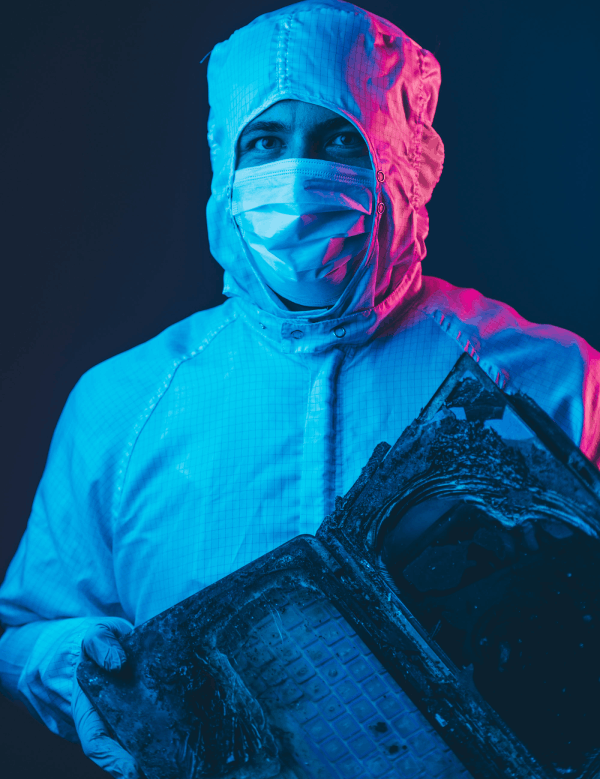
Hagan is right. People continue to break stuff. And even when they don’t, drives fail, fires happen, water gets in, ransomware hits, and sometimes an AI agent deletes a folder it wasn’t supposed to touch.
The stories in The New Yorker piece are dramatic on purpose: a laptop pulled from a sunken ship, drives salvaged from a house fire, a filmmaker’s footage saved after a drive crashed to the floor. But most data loss isn’t dramatic. Most of the time it’s quiet. A drive starts clicking. A photo library won’t open. An automatic backup software that was supposed to be running wasn’t.
We receive all types of “Disk-asters” every day. The dramatic cases make for better stories. The quiet ones are more common, and they’re the ones you can do something about before you need us.
Here are four tips for minimizing your data loss.
A working backup determines whether a drive failure becomes real data loss. Most customers who lose data permanently had a backup situation that failed them in some way: it wasn’t current, wasn’t running, or wasn’t there at all.
The industry standard is the 3-2-1 rule. Keep three copies of your data, on two different kinds of storage media, with one copy stored offsite. In practice, that might look like this:
The idea is that no single event, whether a drive failure, a fire, a theft, or a ransomware infection, can take out all three at once.
A few things we see trip people up. A backup that isn’t running isn’t a backup, so check that yours is actually completing, schedule it if it’s manual, and verify it occasionally by opening a file from the backup. Cloud sync is not the same as a backup: services like iCloud, OneDrive, and Google Drive mirror your current state, which means a deleted or corrupted file gets deleted or corrupted on every device. Some services offer version history or trash recovery for a limited window, but those aren’t substitutes for a real backup. And external drives age. If your backup drive is more than five years old, it’s worth replacing. The New Yorker piece notes that the average hard drive lifespan is just under seven years.
Most drives give you some warning before they fail. The warnings are easy to miss or dismiss, though, and knowing what to listen and look for can buy you enough time to get your data off before the drive goes.
For traditional hard disk drives (HDDs), the classic warning signs are:
- Clicking, grinding, buzzing, or beeping sounds (the “click of death”)
- Unusually slow file access, boot times, or copy speeds
- Files or folders that vanish, become inaccessible, or show as corrupted
- Frequent system freezes, crashes, or blue screens
- The drive disappears from your computer and reappears
- SMART errors reported by your operating system
For solid-state drives (SSDs), the signs look different. SSDs have no moving parts, so they don’t click or grind. They also tend to fail more suddenly than HDDs, with less advance warning. Signs include:
- Files that become read-only or can’t be saved
- “Bad block” errors
- Sudden freezes during file operations
- The drive is showing free space but failing to accept new writes
- The drive disappearing from BIOS or system recognition
If you see any of these signs, treat them as urgent. The window between “drive acting weird” and “drive won’t turn on” can be very short.
If your drive has been physically damaged, dropped, crushed, burned, or water-exposed, stop troubleshooting and call a professional. The same is true if the drive is clicking, grinding, or making any mechanical noise it didn’t make before, or if it’s no longer being recognized by any computer. And if you’ve already tried DIY software and things got worse, the time to stop is now.
The other situations where professional help is worth the call: when the data on the drive is irreplaceable, and when you’re facing a ransomware situation in which backups were destroyed or encrypted.
At DriveSavers, we work on every type of storage device, from consumer hard drives and smartphones to enterprise servers and RAID arrays. Our “no data, no charge” policy covers most devices: if we can’t recover your data, you don’t pay a recovery fee.
If you’re in that situation right now, contact DriveSavers.
The New Yorker piece is a beautiful piece of writing about the fragility of our digital lives and the craft of bringing files back from the edge. We’re grateful to Julian Lucas for the time he spent with our team.
If there’s one thing we’d want every reader to take from the article, it’s also the thing that would put us out of business if everyone followed it: back up your data, pay attention to the warning signs, power down when something starts acting wrong, and when you do need help, call DriveSavers.
KQED recently featured DriveSavers experts in a follow-up podcast inspired by The New Yorker’s article on data recovery. DriveSavers experts shared stories from the flash memory lab, explaining how engineers recover data from physically damaged devices and perform complex chip transplants on iPhones.
The discussion also explored the emotional impact of data loss, comparing it to grief and offering practical guidance for coping with it. Throughout the program, Bay Area listeners contributed personal stories of lost data, unexpected recoveries, and the meaningful memories stored on their devices.

 English (United States)
  English (Australia)
  French (France)
  English (UK)
  French (Canada)
  English (Canada)
  Spanish (Mexico)
  German
  Dutch
Dutch  Italian
  Finnish
  Polish
  Norwegian
  Swedish
  Danish
  Spanish (Spain)
  Chinese
  Japanese
  German (Austria)