


如何從 Windows 電腦的硬碟中恢復遺失或刪除的照片
你有沒有試過誤刪一張再也無法找回的重要照片?如果那是你的商業或家庭照片、婚禮或童年回憶,或者摯愛之人的相片呢?
根據我們的經驗,用戶在清理電腦以釋放儲存空間或提升速度時,經常會發生這種情況,結果誤刪了一個包含重要相片的資料夾(多數情況下是在不知不覺中)。
在這種情況下,檔案(包括相片)可能不會立即被永久刪除(一開始),而是直接進入 Windows 的回收桶。不過,如果你沒有察覺它們已經消失並繼續使用電腦,你想要恢復檔案的機會將會大大降低。
為了幫助你順利應對這種情況,我們為你帶來了一些實用技巧,讓你可以輕鬆無憂地從 Windows 硬碟中恢復已刪除的相片!
從電腦恢復已刪除相片的方法
Recover from the Trash Bin
你應該首先尋找已刪除相片的地方是電腦的回收桶。當你不小心按下鍵盤上的刪除鍵時,系統並不會將檔案永久刪除,而是將它移到回收桶中。
如果你很快就發現電腦裡有一些相片不見了,請前往回收桶將它們還原。
操作方法如下:
1. 首先,在電腦桌面上雙擊回收桶資料夾。
2. 在回收桶中搜尋已刪除的相片;找到後選取並將它們還原至原本的位置。

Try Backup and Restore option
如果你習慣使用 Windows 的備份功能來備份資料,那麼很有可能會在之前的備份版本中找到你的相片。
以下是如何嘗試使用「備份與還原」選項來恢復已刪除相片的方法。
1. 按一下「開始」按鈕並搜尋「控制台」,然後按「系統及維護」,再選擇「備份與還原」。
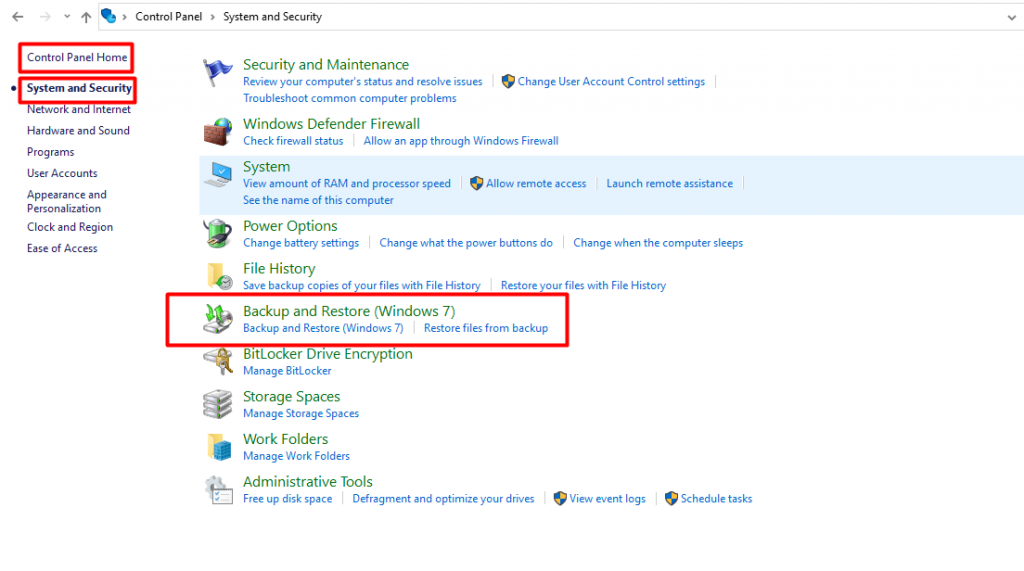
2. 如果你經常使用 Windows 備份功能,系統會顯示最近的備份清單,你可以選擇最新的備份來恢復已刪除的相片及其他檔案。
Recover Deleted Photos from your Windows File History
檔案歷程記錄 是另一項強大的 Windows 功能,可協助你恢復電腦中已刪除的相片。此功能適用於 Windows 8 和 Windows 10。
Windows 的檔案歷程記錄在啟用後會自動備份你的所有資料,不論是相片、文件還是影片。因此,如果電腦中的相片已被永久刪除,使用檔案歷程記錄來恢復會非常容易。
請按照以下步驟,使用 Windows 的檔案歷程記錄功能來恢復已刪除的檔案:
1. 首先,前往電腦中相片被刪除的位置,然後在 Windows 搜尋框中輸入「使用檔案歷程記錄還原檔案」。

2. 在搜尋欄中輸入你要尋找的檔案或資料夾名稱,然後按 Enter。你會看到可以恢復的檔案和資料夾版本。
3. 選取你想還原至原本位置的檔案和資料夾,然後按「還原」按鈕。
4. 你可以將檔案還原到與原位置不同的位置,只需按住或右鍵點擊「還原」按鈕,然後選擇還原至,再選擇新的還原位置。
If You Store on Cloud, Connect with Your Provider
現時有許多雲端儲存選項,可以用來備份重要的相片、文件和影片。建議你將重要資料儲存在多個位置,以最大程度減低資料遺失的風險。
如果你遺失的資料中可能包含已丟失的相片,你可以隨時聯絡雲端儲存服務供應商來還原備份,從而找回遺失的相片。
資料遺失的主要原因
Data loss often occurs due to reasons that are beyond your control. However, you can still prevent data loss through technical knowledge and tools. Following are a few common reasons for unprecedented data loss.
- Human error: You might unknowingly erase files mistaking it for another form of action. From tech-geeks to those with basic computer knowledge, everyone can end up losing their documents, photos, and videos.
- Exposing Hard Drive to extreme conditions: Although it’s a good idea to save your data on an extra Hard Drive for protection, you can end up with a non-functioning one if you expose it to extreme conditions. For instance, leaving your external Hard Drive in your car’s glove box on a hot day or accidentally forgetting it near the stove and exposing it to heat can permanently damage the data on your Hard Drive.
- Power outage: Operating your computer on an unstable electric supply is another frequent data loss situation. It can severely damage your hard disk, and in a matter of minutes, you can end up losing everything stored on it. In such a case, Always refrain from trying to retrieve data by yourself as you can damage the Hard Drive further and make the recovery impossible even for an expert. Always call a DriveSavers expert if you’re unsure how to recover data.
- Downloading Apps from unknown sources: Downloading apps from a non-trusted source is another common reason for losing your data including images on your PC. In the worst case situation, you may leave your data vulnerable to theft, illegal use and even complete loss. This is because a faulty app can corrupt all the files stored in your Hard Drive.
如何防止硬碟上的資料遺失
“Prevention is better than cure.” This saying applies to data as well. Although digital data is always vulnerable to loss and theft, you can prevent it by following simple hacks and best practices. Following are a few tips that are extremely useful in preventing data loss.
延伸閱讀: 最佳備份策略與實務,保護您的資料
- Make Regular Backups: 定期備份資料是防止資料遺失的最佳做法。這可確保您的資料保持在最新狀態。除了能恢復已刪除的檔案外,還能保護您的資料。
- Use External Devices to Safeguard Your Data: 您可以透過將資料儲存在外接式儲存裝置中來減低遺失的風險。如果資料儲存在多於一個裝置上,遺失的機會就會更低。
使用外接儲存裝置,例如硬碟、USB 和 SD 卡,可以幫助您將相片和影片儲存於多個位置,同時釋放電腦的磁碟空間並提升效能。
- Label Your Hard Drives: It takes minimum effort to label your Hard Drives as it helps you remember what you have stored in each of them. So, if one of your Hard Drives gets corrupted, you’ll know which one it is and won’t mistakenly overwrite the wrong one.
- Other Data Protection Tools: 如果您是 Windows 用戶,很可能可以使用 Windows 備份、Windows 檔案檢查器和 Windows 檔案歷史記錄等工具,隨時保護您的珍貴相片、影片及其他檔案。
硬碟故障的跡象與症狀
有一些警示跡象顯示您的硬碟可能出現問題。越早察覺,您就有越大機會避免嚴重的資料遺失。
- Scratching noises emanating from Hard Drive: Clicking or scratching noises coming from your computer or external Hard Drive are usually the first sign of a problem. It straight away means that physical parts of your Hard Drive are starting to wear out.
- Files taking too long to open: If you experience too much delay in accessing files and folders on your computer, it is a warning sign that something is wrong with your hard disk, and requires you to pay attention. Your problem may be associated with the fact that you have less space left on your Hard Drive since it is nearing its capacity.
- Frequent Apps and Software crashes: 損壞或故障的硬碟可能導致系統和應用程式經常當機,這是硬碟即將損壞的警示信號。
能否從損壞的硬碟中恢復相片?
一個常見的迷思是,硬碟一旦損壞就無法恢復遺失的資料,因為它已經受到物理損傷。在某些情況下這確實正確,但很多時候硬碟的損壞程度並沒有您想像的那麼嚴重。
您看,如果讀寫磁頭沒有撞擊碟片,並且沒有將碟片上的資料刮掉,那麼您仍有機會恢復已刪除的相片、影片、音樂和文件。
致電 DriveSavers 的資料救援專家
當您決定那些相片、影片和文件對您有多重要時,您的資料救援之旅便已展開。
要從損壞或失效的硬碟中恢復資料,並不是小孩的遊戲,也不是看 YouTube 教學影片就能完成的 DIY 任務。
DriveSavers 是一家值得信賴的資料救援公司,擁有豐富的專業知識和工具,可協助您恢復遺失的相片及其他資料。
憑藉超過 40 年從硬碟及其他儲存裝置恢復資料的經驗,DriveSavers Data Recovery 是解決各類資料問題的可信領導者。
立即聯絡我們的資料救援專家團隊,協助您恢復受損硬碟中的相片!

 English (United States)
  English (Australia)
  French (France)
  English (UK)
  French (Canada)
  English (Canada)
  Spanish (Mexico)
  German
  Dutch
Dutch  Italian
  Finnish
  Polish
  Norwegian
  Swedish
  Danish
  Spanish (Spain)
  Chinese
  Japanese
  German (Austria)