


Don’t Get Caught by SMS Text Phishing
Por Michael Hall, Director de Seguridad de la Información
If you’re a regular reader of our blog, you are already familiar with phishing emails from an article we posted earlier this year, Don’t Get Caught by Phishing or Other Email Attacks.
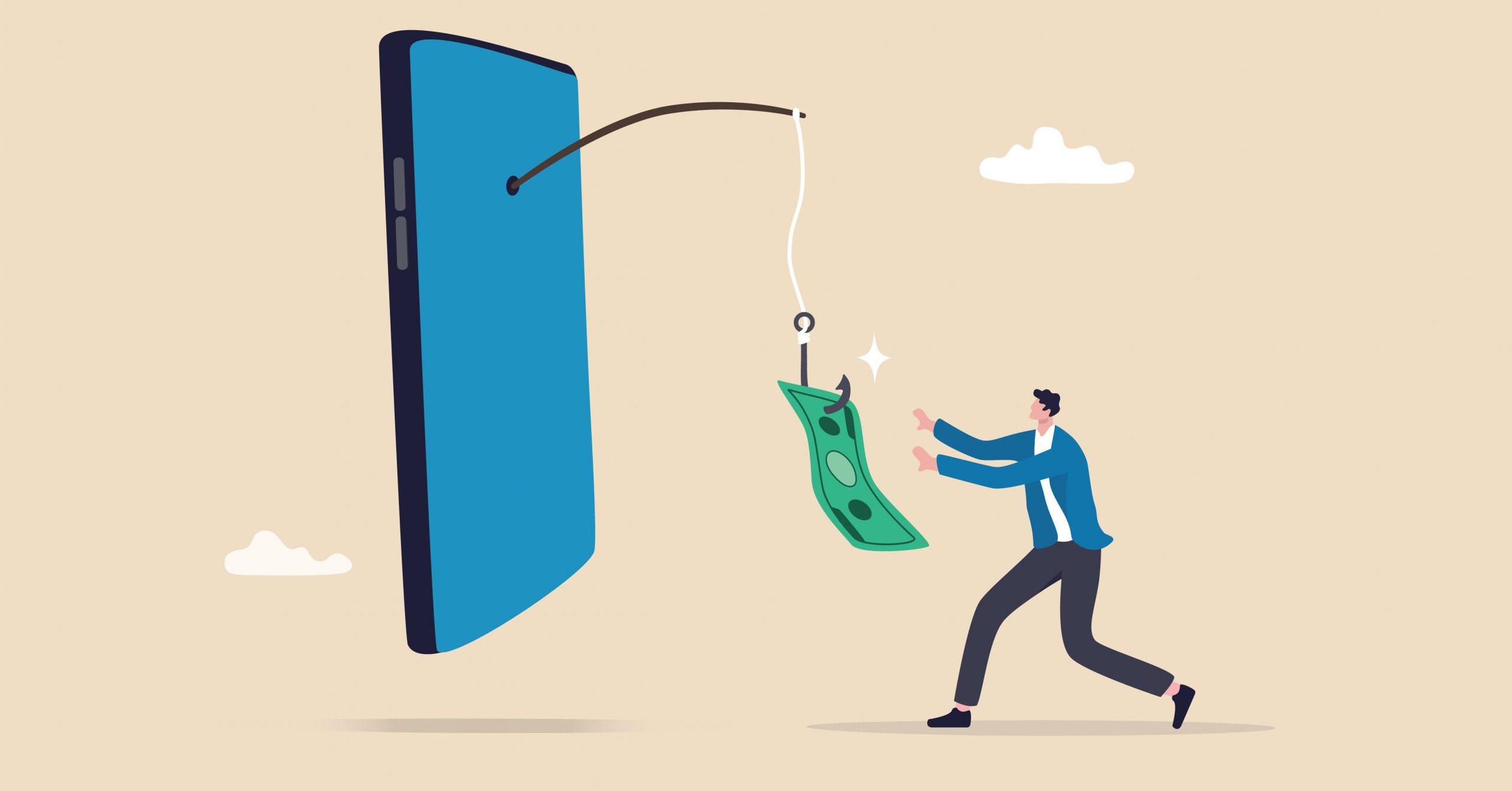
Phishing is a tactic used by criminals to disguise themselves in a way that makes a victim trust them, and then trick that victim into providing valuable personal information:
- Credit card information
- Bank account information
- Login and password information
- Social Security Number
- Anything else that might be valuable
What you may not realize is that phishing isn’t confined to emails and web browsing. Every day, people are fooled on their phones through spoofed text messages.
Spoof messages are sometimes easy to spot, but not always. These fraudulent communications look like they come from a trusted source or someone you know, but they are not what they appear to be.
For example, never trust messages that claim to be from your bank that include links or ask for information. Instead of replying with your personal info or going to the link, try calling your bank directly to discuss the content of the text. Use a phone number from your bank card or statement. This security protocol applies to messages from any number you don’t recognize.
You should constantly be on guard, especially for some new phishing attempts via iMessages that look authentic, but are actually bogus messages designed to steal your personal or financial information.
Here’s an example of a current phishing attempt that iPhone users are receiving via iMessage:
This scheme is kind of a tricky one. Aside from the pretty bad fake Apple domain (“appleid.ios-icloud-server.com/us”), it seems like a legitimate message you might get from Apple. However, this is not an authentic communication from Apple. It’s a fake—don’t open it!
If you receive a message like this or any other message that you’re not 100% certain about, don’t use the included link. Instead, log into your Apple ID account directly at https://appleid.apple.com/. From there, you can verify all of your logged-in devices. In fact, we would recommend that users do this a few times a year as a matter of habit, just to keep tabs on their devices.
If you’d like to make your Apple ID more secure, two-factor authentication is a simple way to do that. Once you have it set up, two-factor verification will be required any time you sign in to manage your Apple ID, sign into iCloud or make an iTunes, iBooks or App Store purchase from a new device.
- You enter your password
- Apple sends a unique access code to a device that you have previously designated with Apple as a “trusted device”
- You enter the access code on the login page
As described on the Apple Support website, you can follow the steps below to turn on two-factor authentication.
On your iPhone, iPad, or iPod touch with iOS 9 or later:
- Go to Settings > iCloud > tap your Apple ID
- Tap Password & Security
- Tap Turn on Two-Factor Authentication
On your Mac with OS X El Capitan or later:
- Go to Apple () menu > System Preferences > iCloud > Account Details
- Click Security
- Click Turn on Two-Factor Authentication
Visit Apple’s two-factor authentication support page for more information.
If you receive a junk/phishing message on your device, block the sender’s number. Here’s how to do that on an iOS device, like an iPhone or iPad.

 English (United States)
  English (Australia)
  French (France)
  English (UK)
  French (Canada)
  English (Canada)
  Spanish (Mexico)
  German
  Dutch
Dutch  Italian
  Finnish
  Polish
  Norwegian
  Swedish
  Danish
  Spanish (Spain)
  Chinese
  Japanese
  German (Austria)