


Können Daten von einem ausgefallenen BitLocker-verschlüsselten Laufwerk wiederhergestellt werden?

Ja, Daten auf einem BitLocker-verschlüsselten Laufwerk können wiederhergestellt werden, selbst wenn dieses physisch ausgefallen ist. Die Verschlüsselung fügt jedoch eine Anforderung hinzu: Der Wiederherstellungsschlüssel muss vom Laufwerkseigentümer oder einer anderen autorisierten Partei stammen, da es keine Möglichkeit gibt, ihn abzuleiten, und auch keine Hintertür existiert.
Die meisten entdecken auf eine von zwei Arten, dass sie den Wiederherstellungsschlüssel benötigen. Entweder ist ein Computer ausgefallen und das Laufwerk wurde ausgebaut, oder ein Zurücksetzen veranlasste den Rechner, einen 48-stelligen Schlüssel anzufordern, den der Eigentümer nicht besitzt
Was sich geändert hat in Windows 11 24H2
BitLocker war früher etwas, das man selbst aktivierte. Auf aktueller Hardware läuft es häufig bereits von Haus aus.
Die Geräteverschlüsselung ist seit Jahren bei jeder Windows-Edition, einschließlich Home, verfügbar. Die Änderung in 24H2 betraf die Hardwareanforderungen. Microsoft hat die Anforderung an Modern Standby und HSTI sowie die Einschränkung bei Geräten mit DMA-fähigen Anschlüssen entfernt, welche zusammen die meisten gewöhnlichen Desktop-PCs und viele Laptops bislang außen vor gelassen hatten. Deutlich mehr Geräte erfüllen nun die Voraussetzungen. Verfügt ein Gerät über ein TPM, aktivierten sicheren Start und eine konfigurierte Wiederherstellungsumgebung, ist die Verschlüsselung wahrscheinlich bereits aktiv.
Die Verschlüsselung wird bei sauberen Installationen und Werksrücksetzungen aktiviert. Umgekehrt wird ein Gerät, das über Windows Update auf 24H2 aktualisiert wird und bereits über ein unverschlüsseltes Laufwerk verfügt, nachträglich nicht verschlüsselt. Der Schlüssel wird nur dann in einem Microsoft-Konto gespeichert, wenn sich jemand während der Einrichtung mit einem solchen anmeldet; ein mit einem lokalen Konto eingerichtetes Gerät verfügt daher möglicherweise nirgends über einen gespeicherten Schlüssel.
Daraus ergeben sich zwei Konsequenzen. Ein Gerät kann verschlüsselt sein, ohne dass sich der Eigentümer jemals dafür entschieden hätte, und eine Werksrücksetzung kann ein Laufwerk verschlüsseln, das zuvor nicht verschlüsselt war.
Warum ein funktionierender Computer nie nach dem Schlüssel fragt
Im Alltag wird BitLocker im Hintergrund entsperrt, ohne dass ein Eingreifen des Benutzers erforderlich wäre. Der Schlüssel ist im TPM-Chip auf dem Mainboard versiegelt, und solange das Laufwerk in diesem Gerät verbleibt und sich die Startreihenfolge nicht geändert hat, öffnet sich das Volume, ohne dass jemand etwas eingeben müsste.
Wird das Laufwerk entfernt oder geht das Mainboard verloren, ist dieser Weg versperrt. Das TPM ist an das Gerät gebunden, nicht an das Laufwerk. Sobald beide voneinander getrennt sind, wird der 48-stellige Wiederherstellungsschlüssel erforderlich.
Deshalb taucht der Schlüssel selten auf, bevor nicht bereits etwas schiefgelaufen ist: Niemand braucht ihn, solange der Computer funktioniert.
Datenrettung auf einem verschlüsselten Laufwerk erfordert den Schlüssel
Die physische und logische Arbeit ändert sich nicht dadurch, dass ein Laufwerk verschlüsselt ist, doch die Methoden unterscheiden sich. HDDs mit mechanischen Schäden erfordern weiterhin einen Eingriff im Reinraum. Moderne SSDs nutzen spezialisierte Diagnosewerkzeuge, um im Werksmodus direkt mit dem Controller des Laufwerks zu kommunizieren, sodass die integrierte Engine die Rohdaten entschlüsseln und übertragen kann, da NAND-Chips aufgrund der hardwareseitigen Verschlüsselung nicht direkt ausgelesen werden können.
Die meisten von Windows 11 verschlüsselten Laufwerke sind SSDs; jedoch können auch HDDs mit BitLocker verschlüsselt werden. Sekundäre interne Laufwerke werden zusammen mit dem Boot-Laufwerk verschlüsselt, und BitLocker To Go deckt externe Laufwerke ab, bei denen es sich häufig um rotierende Festplatten handelt.
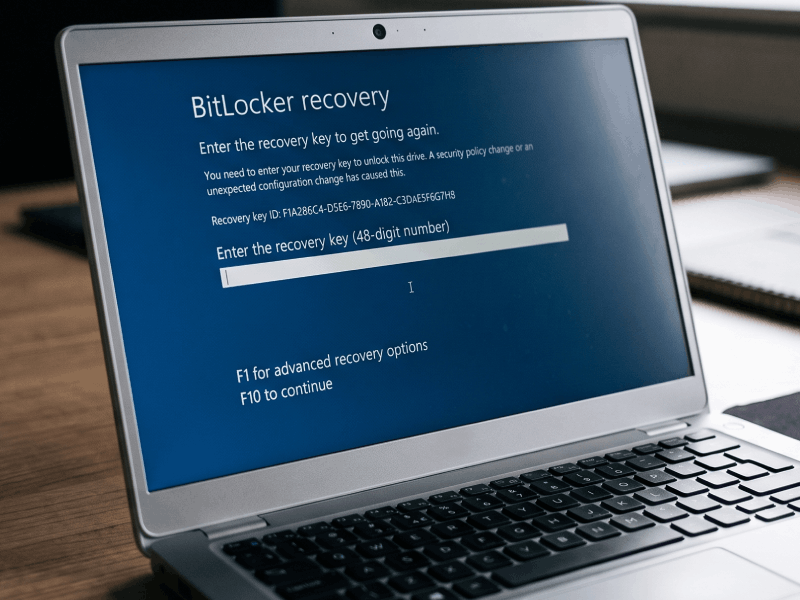
Die Verschlüsselung spielt eine Rolle, sobald das Laufwerk abgebildet (ein vollständiges, sektorweises Abbild) wurde. Das Dateisystem befindet sich innerhalb des verschlüsselten Volumes. NTFS-Strukturen, die Dateitabelle, Verzeichniseinträge – all das ist zusammen mit den Dateien verschlüsselt. Die Dateistruktur kann nicht rekonstruiert werden, solange die Daten noch verschlüsselt sind, weshalb wir den Schlüssel bereits vor Beginn der Rekonstruktion benötigen – nicht erst am Ende, wenn die Dateien übergeben werden.
Microsofts eigenes Reparaturtool funktioniert genauso. Der Befehl repair-bde existiert speziell dafür, Daten aus einem beschädigten BitLocker-Volume zu retten, und er läuft nicht ohne ein gültiges Wiederherstellungskennwort oder einen gültigen Wiederherstellungsschlüssel. Sind die BitLocker-Metadaten des Volumes beschädigt, wird zudem ein Sicherungsschlüsselpaket benötigt.
Wo Sie den Wiederherstellungsschlüssel finden
Schlüssel finden sich in der Regel an einer Handvoll vorhersehbarer Stellen:
Das mit dem Gerät verknüpfte Microsoft-Konto, unter account.microsoft.com/devices/recoverykey.
Dies deckt die meisten privaten Geräte ab, die mit einem Microsoft-Konto eingerichtet wurden.
Eine ausgedruckte Kopie oder eine während der Einrichtung gespeicherte Textdatei, oft auf einem USB-Stick, der an einem sicheren Ort aufbewahrt wurde.
Active Directory oder Microsoft Entra ID, bei einem vom Arbeitgeber verwalteten Gerät.
Eine MDM-Plattform wie Microsoft Intune.
Ein IT-Administrator, der ihn im Auftrag des Eigentümers verwahrt.
Überprüfen Sie all diese Stellen, bevor Sie davon ausgehen, dass der Schlüssel verloren ist.
Wenn sich der Schlüssel nur schwer auffinden lässt
Einige Situationen erfordern etwas mehr Aufwand.
Das Gerät gehört einem Arbeitgeber.
Die Person, die es nutzt, kann den Schlüssel in der Regel nicht selbst abrufen, doch das IT-Team der Organisation kann ihn aus Active Directory oder Entra ID holen. DriveSavers arbeitet direkt mit diesem Team zusammen, falls das einfacher ist, als über die Person vorzugehen, die das Gerät nutzt.
Das Unternehmen, dem das Gerät gehörte, wurde geschlossen, oder der IT-Manager ist nicht mehr im Unternehmen.
Der Schlüssel könnte dennoch noch in einem Verzeichnis oder einem MDM-Mandanten vorhanden sein, auf den jemand weiterhin Zugriff hat. Herauszufinden, wer das ist, stellt in der Regel den ersten Schritt dar.
Das Gerät wurde mit einem lokalen Konto eingerichtet, und der Schlüssel wurde nie gespeichert.
Zum Beispiel hat jemand im Support-Forum von Microsoft einen Beitrag über ein Windows 11 Home Laptop mit 15 Jahren an Dateien auf einem sekundären internen Laufwerk verfasst. Die Geräteverschlüsselung hatte sich selbst aktiviert. Das Konto war lokal, sodass der Schlüssel nirgends gespeichert wurde. Dann fiel das Laufwerk mechanisch aus. Keiner dieser Umstände ist für sich genommen ungewöhnlich, aber zusammen bedeuten sie, dass die Daten nicht gelesen werden können.
Es gibt mehrere Laufwerke, und es ist nicht klar, welcher Schlüssel zu welchem Laufwerk gehört.
Jeder Schlüssel verfügt über eine Schlüssel-ID, die das zugehörige Laufwerk eindeutig identifiziert, wodurch sich dies rasch klären lässt.
Der Eigentümer ist verstorben, und die Familie kümmert sich um den Nachlass.
Der Schlüssel könnte sich in einem Microsoft-Konto befinden, auf das die Familie Zugriff hat.
Was DriveSavers benötigt, bevor wiederhergestellte Daten zurückgegeben werden
Bevor DriveSavers wiederhergestellte Daten herausgibt, müssen wir sicherstellen, dass die anfragende Person tatsächlich dazu berechtigt ist. Unsere Geschäftsbedingungen verlangen von Ihnen die Bestätigung, dass Sie Eigentümer des Geräts sind oder die Erlaubnis des Eigentümers besitzen, und DriveSavers behält sich das Recht vor, entsprechende Nachweise anzufordern. Dies kommt häufig bei Nachlässen und bei Geräten vor, die einem Unternehmen gehörten. Wird dies frühzeitig geklärt, verhindert das Verzögerungen am Ende des Prozesses.
Wenn das Laufwerk ausfällt, zählt jede Minute
Ein ausfallendes Laufwerk verschlechtert sich mit zunehmender Nutzung. Weshalb das so ist, hängt vom Laufwerkstyp ab, und dieser Unterschied ist hier von Bedeutung, da die meisten von Windows 11 verschlüsselten Laufwerke SSDs sind.
Bei einer HDD kann der Schaden physischer Natur sein. Jeder Stromzyklus bei einem mechanisch beschädigten Laufwerk gibt dem Schaden eine weitere Gelegenheit, sich auszubreiten, und wiederholte Leseversuche auf beschädigten Datenträgern nutzen diese weiter ab. Klickgeräusche, Schleifgeräusche, wiederholte Verbindungsabbrüche oder die Anzeige einer falschen Kapazität sind allesamt Gründe, sofort aufzuhören.
Eine SSD kann Sie auf unterschiedliche Weise warnen und aus verschiedenen Gründen ausfallen. Sie werden nichts hören; zu den Anzeichen gehören, dass das Laufwerk aus der Datenträgerverwaltung oder dem BIOS verschwindet, in den schreibgeschützten Modus wechselt, oder die Leistung stark einbricht. Auch wiederholte Versuche haben ihren Preis. Jeder fehlgeschlagene Scan fügt den bereits geschädigten NAND-Chips zusätzlichen Read-Disturb-Stress hinzu, und Bitfehler akkumulieren sich – wiederholtes Ausführen von Wiederherstellungssoftware auf einer ausfallenden SSD erschwert daher die Aufgabe nur zusätzlich.
Die Verschlüsselung erhöht den Einsatz an einer ganz bestimmten Stelle. Ein beschädigter Sektor innerhalb einer Datei kostet Sie die Daten in genau diesem Sektor. Ein beschädigter Sektor innerhalb der BitLocker-Metadaten kann dagegen verhindern, dass sich das Volume überhaupt einbinden lässt, selbst wenn Sie über den Schlüssel verfügen.

Wenn Sie gar keine Datenrettung benötigen
Ein gesperrtes, aber unversehrtes Laufwerk benötigt keinen Datenrettungsdienst. Startet ein Gerät zum BitLocker-Wiederherstellungsbildschirm, während das Laufwerk selbst einwandfrei funktioniert, löst das Auffinden des Schlüssels das Problem bereits. Dasselbe gilt für ein Laufwerk, das im ursprünglichen Gerät normal gelesen wird, aber in einem anderen nach einem Schlüssel fragt. Es einzuschicken, bringt die Daten nicht schneller zurück, als es das Auffinden des Schlüssels tun würde.
Datenrettung kommt dann ins Spiel, wenn das Laufwerk beschädigt, degradiert ist oder sich überhaupt nicht mehr lesen lässt.
Beginnen Sie mit dem Schlüssel
DriveSavers kann Daten von einem BitLocker-verschlüsselten Laufwerk wiederherstellen. Die Verschlüsselung hält die Arbeit nicht auf, und ein ausgefallenes verschlüsseltes Laufwerk erhält bei DriveSavers genau dieselbe Aufmerksamkeit wie jedes andere ausgefallene Laufwerk.
Der Wiederherstellungsschlüssel ist das eine Element, das wir nicht selbst beschaffen können. Er befindet sich in einem Microsoft-Konto, einem Unternehmensverzeichnis, einem MDM-Mandanten, auf einem ausgedruckten Blatt in einer Schublade oder bei der Person, die das Gerät eingerichtet hat. Prüfen Sie all diese Möglichkeiten, bevor Sie davon ausgehen, dass er verloren ist, denn in der Regel taucht er an einer dieser Stellen auf.
Fällt auch das Laufwerk aus, verwenden Sie es während der Suche nicht weiter. Jeder weitere Leseversuch kostet Sie etwas, und das Laufwerk wird sich in einem besseren Zustand befinden, sobald der Schlüssel auftaucht.
Um Daten von gesperrten oder beschädigten Speichereinheiten wiederherzustellen, wenden Sie sich an DriveSavers Recovery Services unter +1 (888) 440-2404.

 English (United States)
  English (Australia)
  French (France)
  English (UK)
  French (Canada)
  English (Canada)
  Spanish (Mexico)
  German
  Dutch
Dutch  Italian
  Finnish
  Polish
  Norwegian
  Swedish
  Danish
  Spanish (Spain)
  Chinese
  Japanese
  German (Austria)